One command — and in a couple of minutes a clean VPS or dedicated server becomes ready-to-use web hosting: no control panel, no unnecessary packages, and a config that picks up new domains on its own.
The script is fully functional: the configs have been refined over years and tested on hundreds of VPS and dedicated servers, and we use them ourselves every day. Still, a lot depends on your hosting provider, its settings, and other external factors — please test everything before going to production.
Information#
What It Does#
Fully automatically configures a VPS or dedicated server from scratch to run a web server.
Installs:
- Nginx
- PHP-FPM versions 7.4 and 8.2 (switchable in the config)
- MariaDB
What’s the Benefit#
- Automation — the universal config removes the need to configure each domain manually (more on it below)
- Security — there is no control panel, so the server cannot be hacked through its vulnerabilities
- Clean system — no unnecessary packages or extra software
- Flexibility — everything can be fine-tuned, including complex forwards and redirects inside the server
What Is the Universal Config#
It is a web server config that automatically determines which domain a request came to and routes it to the correct directory. All you need to do is create a folder in /var/www/ named after the domain (e.g., /var/www/google.com) and upload your files there — the site works right away, with no additional configuration.
Basic Usage#
Important! The script works 100% correctly on Rocky 9 and, with 99.99% probability, on CentOS 9. Rocky 8 or CentOS 8 can be used, but this is not recommended.
Clean server only! No LAMP stacks or other bundles — only a clean OS. Request one from your hosting provider.
curl -s https://repo.privateflare.com/webhostscript/webhostscript.bash | bashIn a couple of minutes the server will be ready. Connect via SFTP (FileZilla, WinSCP, Transmit) and upload your landing pages and sites.
To verify that it works, point any domain to the server’s IP and open it in a browser. First, create an info file:
echo "<? phpinfo();" > /var/www/noroot/index.phpBe sure to delete it after testing:
rm -f /var/www/noroot/index.phpAdvanced Usage#
All operations are performed via SFTP: FileZilla (Windows), WinSCP (Windows, recommended), or Transmit (macOS).
Using Individual Domain Configs#
Useful when a server with regular white pages, landing pages, and other simple sites also needs to host, for example, a WordPress blog.
First, edit the main Nginx config — it is located in the /etc/nginx directory:
Before:

Add the line include conf.d/*.conf;. After:
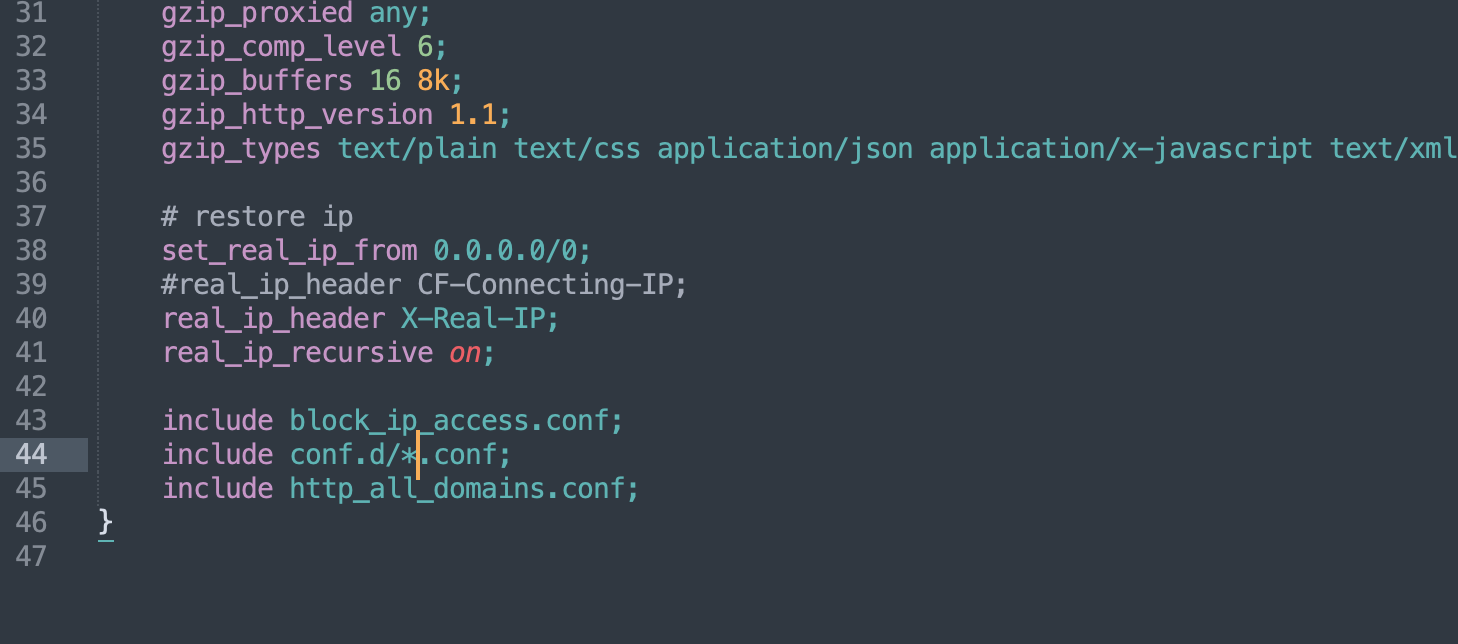
Reload the config via the console:
nginx -t && nginx -s reloadThen copy the template you need: host_nossl.conf_ (this example uses a config without SSL certificates and HTTPS) to google.com.conf.
Open the new file google.com.conf and use find-and-replace to change VHOST to your domain (google.com). Adjust the rest to your needs. For example, for WordPress the config will look like this:
server {
    listen 80;
    server_name google.com; # <-- changed

    #access_log off;
    error_log /var/log/nginx/error.log;
    access_log /var/log/nginx/access.log main;

    root /var/www/google.com; # <-- changed
    index index.php index.html;

    location ~ /.well-known {
        root /var/www/noroot;
    }

    location / {
        try_files $uri $uri/ /index.php?$args; # <-- changed
    }

    location ~ \.php$ {
        index index.php;
        include php82.conf; # <-- changed
    }
}
Save the file and reload the configs:
nginx -t && nginx -s reloadAfter that, the blog should already be working.
Using SSL (TLS) Certificates#
Useful if you use the hosting directly, without PrivateFlare or Cloudflare.
Generate a certificate.
Important! Let’s Encrypt sometimes fails to issue certificates on the first try — due to maintenance, incomplete DNS record propagation, or other reasons. We are not affiliated with this organization and cannot influence its operation. If you run into issues, check your A records and try again later.
# in this example google.com is your domain, replace it with yours
# user@gmail.com is your email, replace it with yours as well
certbot certonly -d google.com -n --email user@gmail.com --agree-tos --webroot -w /var/www/noroot
If the certificate was generated successfully, you will see a message like this:
Congratulations! Your certificate and chain have been saved at:
   /etc/letsencrypt/live/api.param.me/fullchain.pem
   Your key file has been saved at:
   /etc/letsencrypt/live/api.param.me/privkey.pem
   Your cert will expire on 2019-06-27. To obtain a new or tweaked
   version of this certificate in the future, simply run certbot again
   with the "certonly" option. To non-interactively renew *all* of
   your certificates, run "certbot renew"
Next, follow the same steps, but use the host_ssl.conf_ template. The final config will look like this:
server {
    listen 80;
    server_name google.com; # <-- changed

    #access_log off;
    error_log /var/log/nginx/error.log;
    access_log /var/log/nginx/access.log main;

    location ~ /.well-known {
        root /var/www/noroot;
    }

    location / {
        # try_files $uri $uri/ /index.php?$args;
        return 301 https://$host$request_uri;
    }
}

server {
    listen 443 ssl;
    http2 on;
    server_name google.com; # <-- changed

    client_max_body_size 32m;

    root /var/www/google.com;
    index index.php index.html;

    ssl_certificate     /etc/letsencrypt/live/google.com/fullchain.pem; # <-- changed
    ssl_certificate_key /etc/letsencrypt/live/google.com/privkey.pem; # <-- changed
    ssl_protocols       TLSv1 TLSv1.1 TLSv1.2;
    ssl_ciphers         HIGH:!aNULL:!MD5;
    ssl_session_cache shared:SSL:10m;
    ssl_session_timeout 10m;
    ssl_stapling on;
    ssl_stapling_verify on;

    error_log /var/log/nginx/error.log;
    access_log /var/log/nginx/access.log main;

    location / {
        try_files $uri $uri/ /index.php?$args; # <-- changed
    }

    location ~ \.php$ {
        index index.php;
        include php82.conf;
    }
}
Create a cron task for certificate renewal. Run the following command in the console:
export EDITOR=nano && crontab -eand add this line:
0 0 1 * * /usr/bin/certbot renew --post-hook "systemctl reload nginx" > /var/log/renewals.logPress Control+X and confirm saving with the Y key — the task is created.
That completes the setup: the server is running, and the certificates renew automatically.